Sticky Contact Bar for Breakdance
Call, WhatsApp, directions and email buttons in a bar that stays on screen. It is built for mobile visitors who want to reach you in one tap.
An illustration of the bar on a phone. On desktop it is hidden by default.
Each button is a type: phone, WhatsApp, directions, email or a custom link. Fill in the number or address and it builds the link.
Choose the position, set a width limit so it only appears on phones, or show it only after the visitor has scrolled.
Pick how the buttons are laid out, then set size, colors and spacing with the normal design controls.
Pre-fill a WhatsApp message so the conversation starts with the context you need.
Add it to your page in 3 steps
Open your page in Breakdance
In WordPress, go to Pages, hover over your page and click Edit with Breakdance.
Open the element panel
Click the plus button at the top left, then open the BreakUI Pro group and find Sticky Contact Bar.
Drag it into your layout
Drop it into a section or container. It loads with sample content so you can see it working right away.
What it looks like in the editor
Real screenshots from the Breakdance editor. Select the element, then use the Content tab for your data and the Design tab for the look.
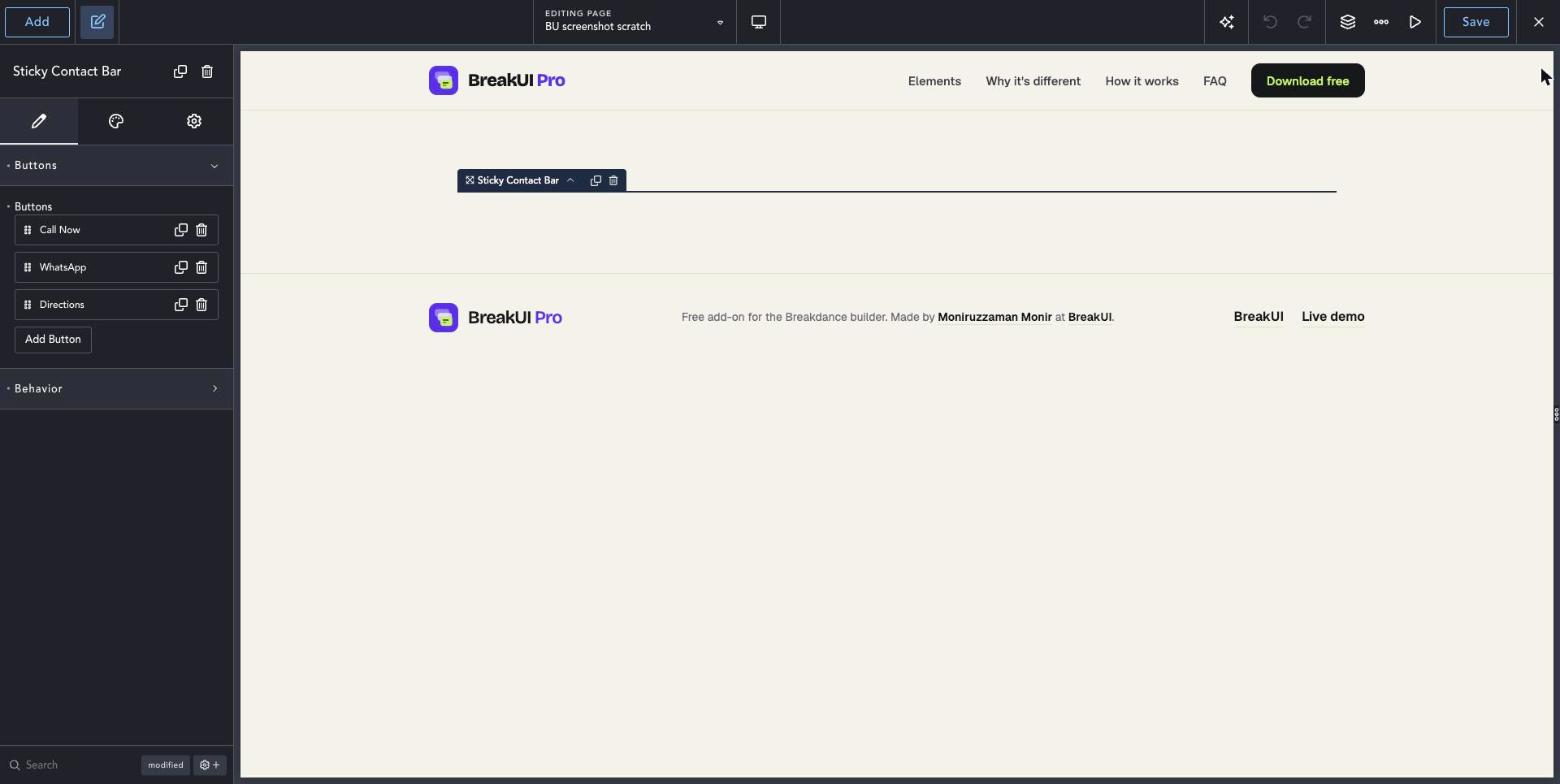

The main settings
Select the element in Breakdance. Everything lives in two tabs.
Your text, items, links and behavior. Change the sample content and you are done.
Colors, typography, borders, spacing and layout, with the normal Breakdance controls.
Set the width in percent, pixels, em, rem, vw or vh, plus max width, min width and alignment.
Style it your way
The Design tab has these groups. Everything uses the normal Breakdance design controls.
Preview it in the phone view of the editor. On desktop it is hidden by default.
Each button can have its own background and text color.