Before / After Slider for Breakdance
A before and after comparison with a draggable handle. Show the work, not just describe it.
This is the real element, running with its sample content.
Choose horizontal or vertical, and whether visitors drag the handle, move the cursor over the image or click to move it.
An optional sweep plays when the slider scrolls into view so people know it moves.
Add Before and After labels, show them only on hover, and style their position.
Pick a handle style, knob size, line width and colors.
Add it to your page in 3 steps
Open your page in Breakdance
In WordPress, go to Pages, hover over your page and click Edit with Breakdance.
Open the element panel
Click the plus button at the top left, then open the BreakUI Pro group and find Before / After Slider.
Drag it into your layout
Drop it into a section or container. It loads with sample content so you can see it working right away.
What it looks like in the editor
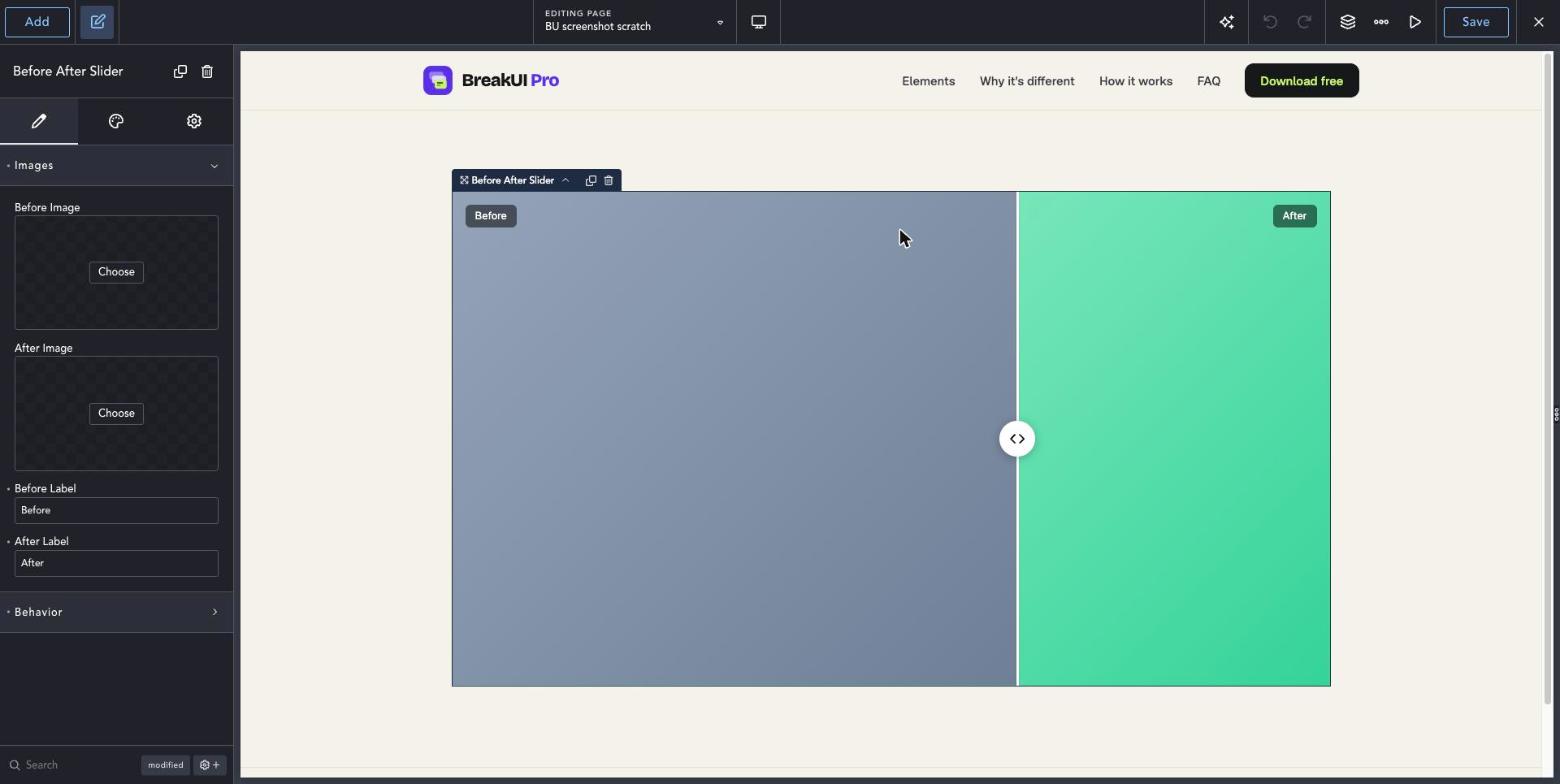
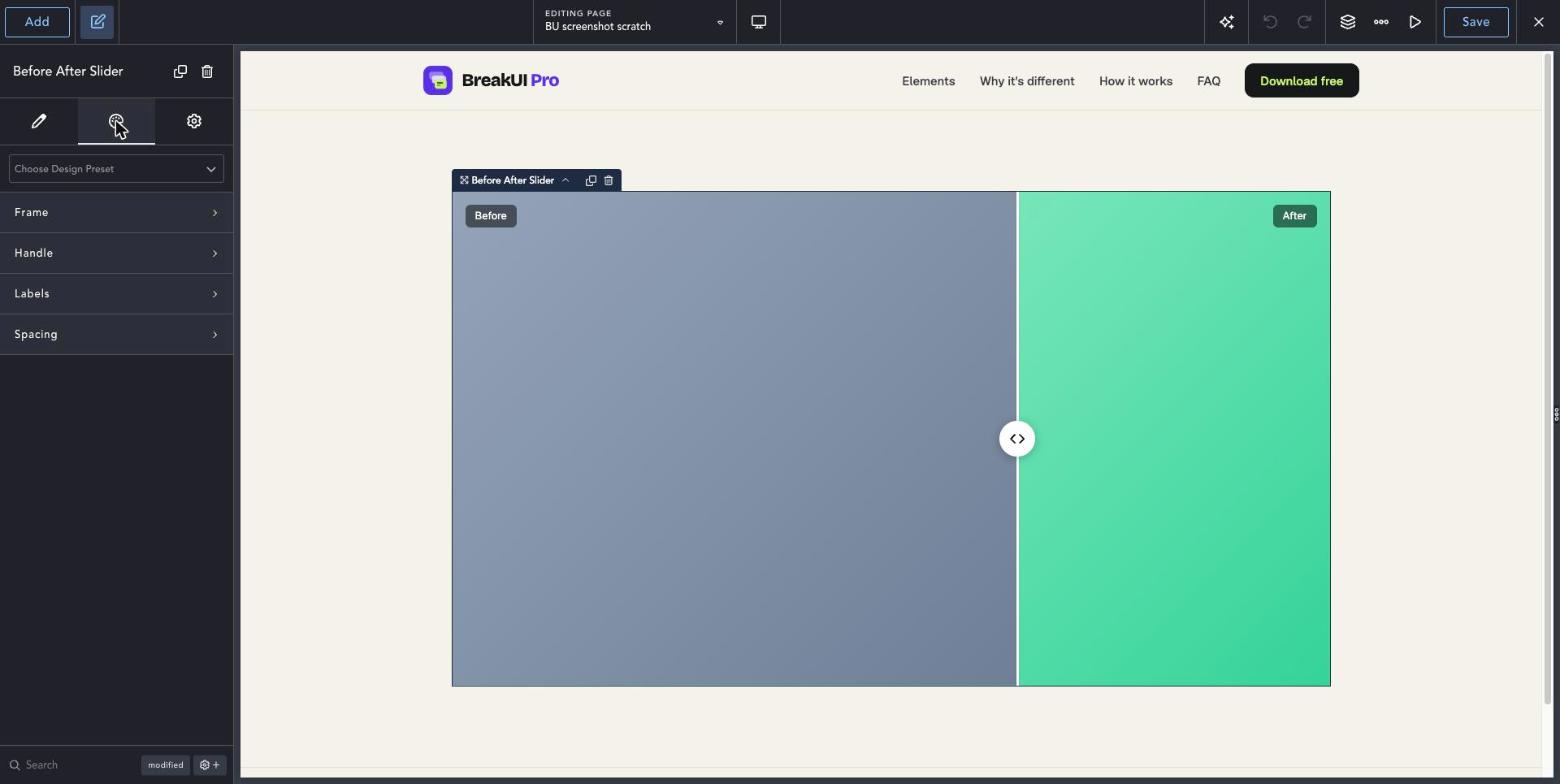
Real screenshots from the Breakdance editor. Select the element, then use the Content tab for your data and the Design tab for the look.
The main settings
Select the element in Breakdance. Everything lives in two tabs.
Your text, items, links and behavior. Change the sample content and you are done.
Colors, typography, borders, spacing and layout, with the normal Breakdance controls.
Set the width in percent, pixels, em, rem, vw or vh, plus max width, min width and alignment.
See it in action
Real renders of the element with different settings.
Vertical orientation
Style it your way
The Design tab has these groups. Everything uses the normal Breakdance design controls.
Match the aspect ratio of the frame to your photos in Design.
Use Labels Only On Hover for a cleaner look.