Scrollytelling Steps for Breakdance
A sticky visual that changes as each step scrolls into view. Use it to explain a process, a product or a story one step at a time.
-
01
Tell us what you need
Send a quick message or give us a call. We reply the same day with next steps.
-
02
Get a clear quote
We visit, measure and send a fixed written quote. No surprises, no pressure.
-
03
We do the work
Our team arrives on time, protects your space and keeps you updated until it is done.
This is the real element, running with its sample content.
An image or video stays in view while the text steps scroll beside it.
Choose how the visual changes between steps and which side it sits on.
Decide where on the screen a step becomes active, and dim the inactive steps.
Optional dots let visitors jump between steps.
Add it to your page in 3 steps
Open your page in Breakdance
In WordPress, go to Pages, hover over your page and click Edit with Breakdance.
Open the element panel
Click the plus button at the top left, then open the BreakUI Pro group and find Scrollytelling Steps.
Drag it into your layout
Drop it into a section or container. It loads with sample content so you can see it working right away.
What it looks like in the editor
Real screenshots from the Breakdance editor. Select the element, then use the Content tab for your data and the Design tab for the look.
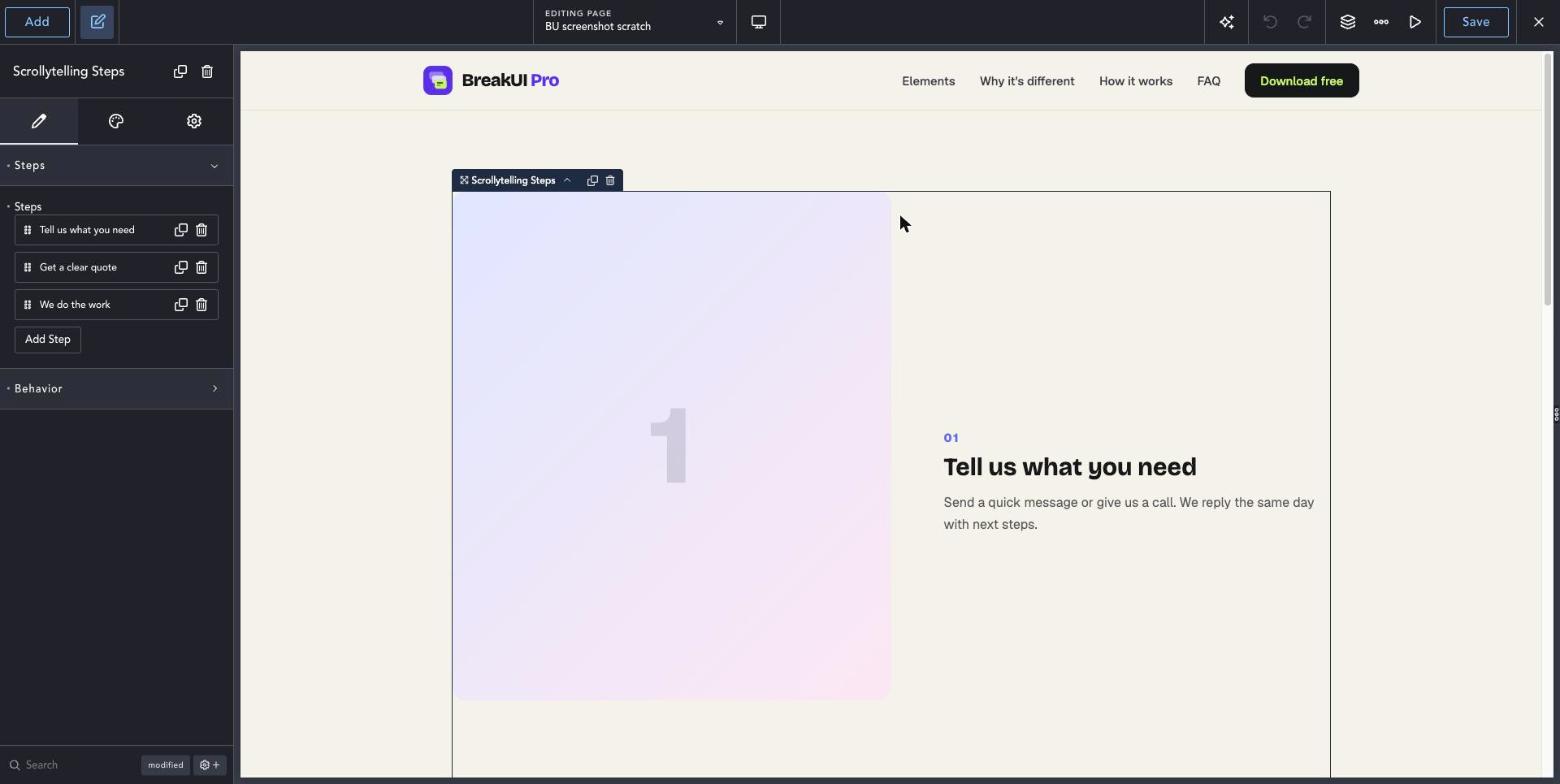
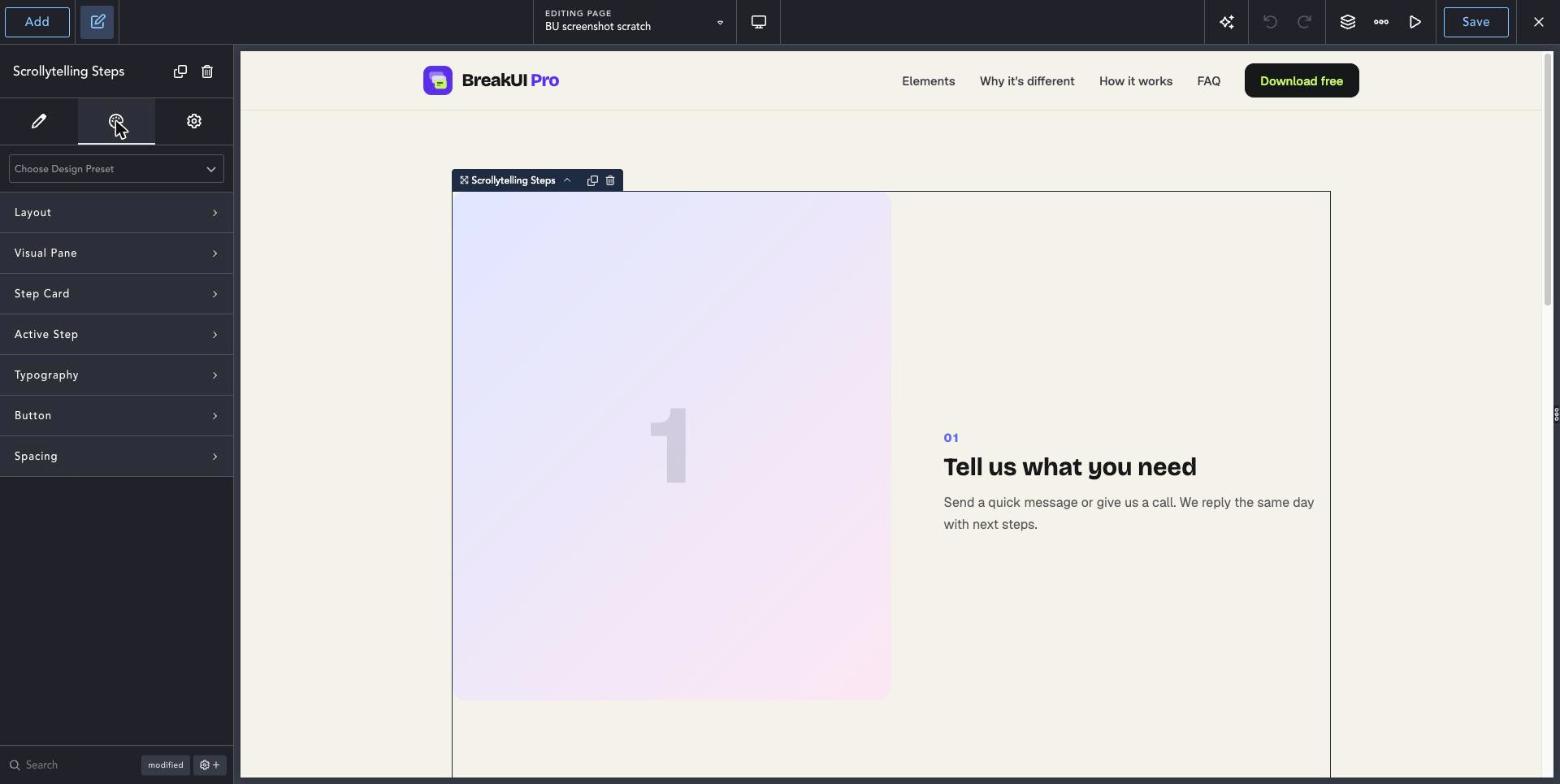
The main settings
Select the element in Breakdance. Everything lives in two tabs.
Your text, items, links and behavior. Change the sample content and you are done.
Colors, typography, borders, spacing and layout, with the normal Breakdance controls.
Set the width in percent, pixels, em, rem, vw or vh, plus max width, min width and alignment.
Style it your way
The Design tab has these groups. Everything uses the normal Breakdance design controls.
Use images with the same aspect ratio for a smooth transition.
Give each step enough text to fill most of a screen height.